

Article ID:
20151218-01
Article name:
How to add and configure the local SMTP Server Service on Microsoft Windows Server 2008 or higher.
Article date:
18 Dec 2015 15:30:10
Products affected:
None
Objective:
Setting up a local SMTP Server relay on windows server 2008 or higher so email can be relayed from the server.
Set-up guide:
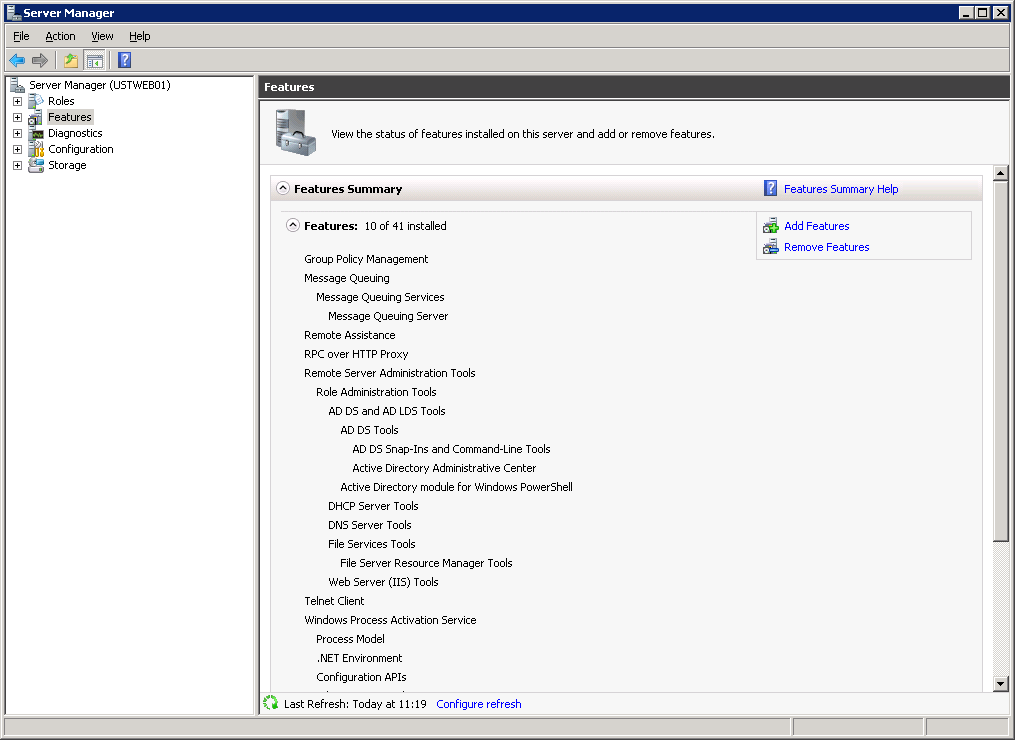
(1) Add SMTP Server Feature in Server Manager: Click on “Add Features”.
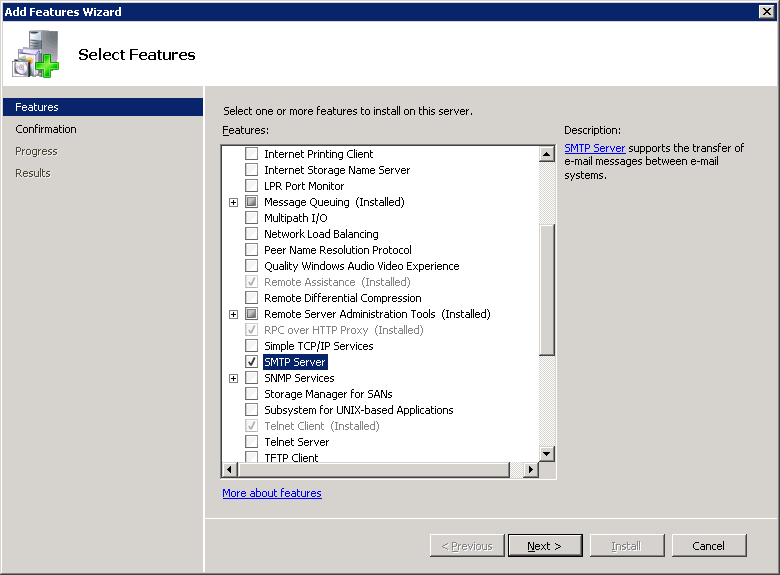
Select “SMTP Server” and click on “Next >”.
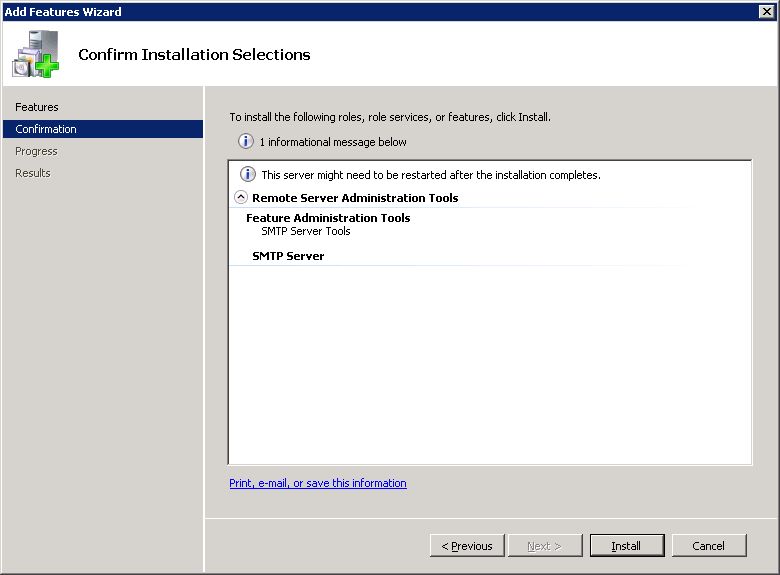
Confirm Installation by clicking on “Install”
(2) Configure Local SMTP Server service to relay messages
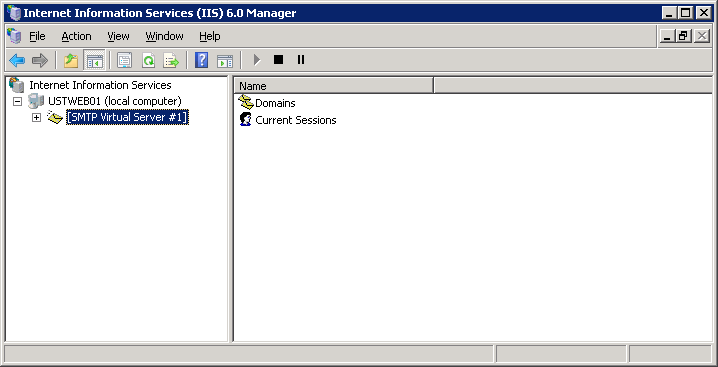
Run Internet Information Service (IIS) 6.0 Manager. This will be installed automatically once the SMTP server feature is installed as above.
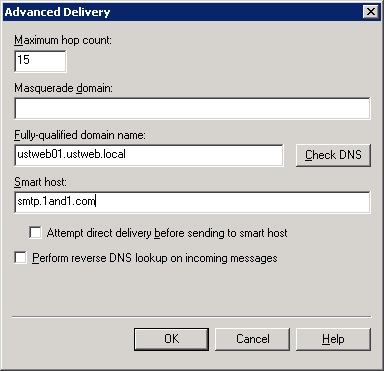
Enter Smart host in Delivery tab (Advanced button) of SMTP Properties
(make sure you use your own “Smart Host” SMTP server name)
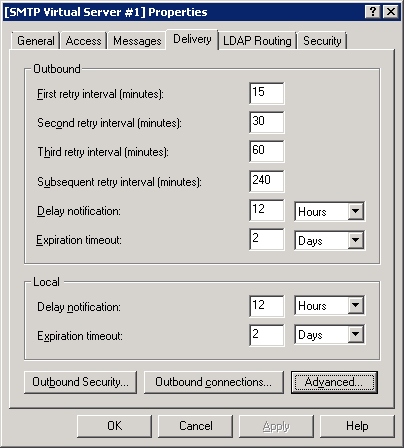
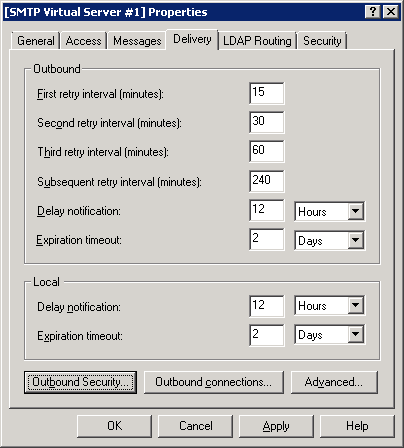
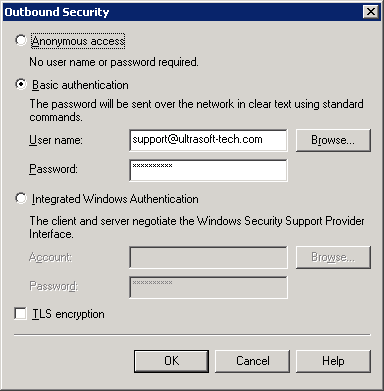
Enter Outbound Security “User name” and “Password” in Delivery tab of SMTP Properties.
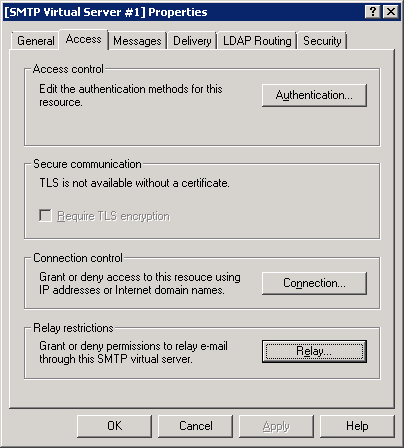
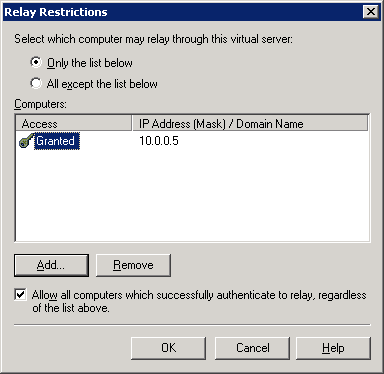
Configure “Relay” by entering Servers (Local IP addresses of UltraSoftBIS servers) which can relay messages via this SMTP server.
These IP addresses are your servers where UltraSoft Apps are installed.
Now “Stop” and “Start” the SMTP Virtual Server
(3) In Services, edit the SMTP (Simple Message Transport Protocol) service and set it’s “Start type” to “Automatic”
This is important, otherwise when the server is rebooted, the SMTP will not start automatically.
— end of article id 20151218-01 —